Zoho CRM Tutorial for Beginners: Step-by-Step Setup Guide — Go Live in 1 Day (2026)

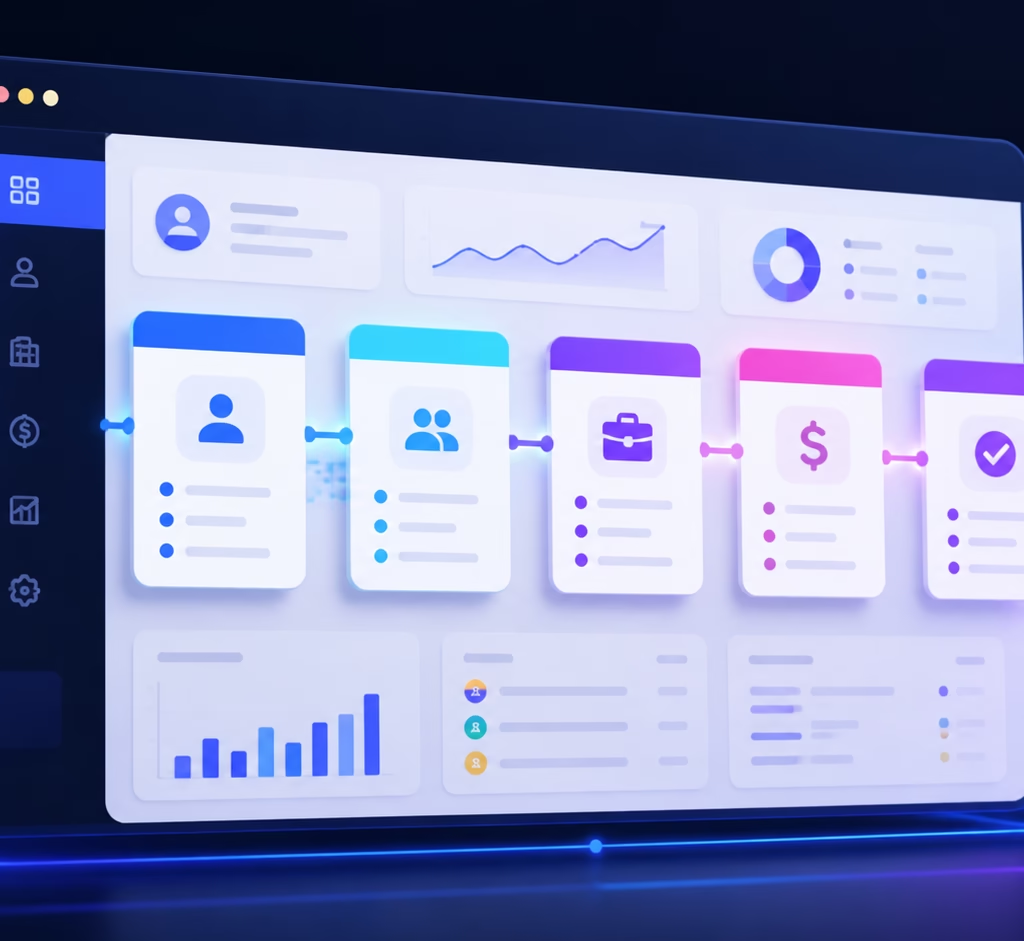
This zoho crm tutorial for beginners is a complete, step-by-step setup guide for 2026. Zoho CRM has five pricing tiers, 50+ modules, and a settings menu that goes six levels deep. Most beginners open it, click around for 20 minutes, and close the tab. For beginners, Zoho also offers a free CRM plan with core features to start without commitment.
Table of Contents
- What This Zoho CRM Tutorial for Beginners Covers
- Module 1: Your First Login and Account Setup
- Module 2: Understanding the Core Data Model
- Module 3: Building Your Zoho CRM Sales Pipeline
- Module 4: Entering Your First Records
- Module 5: Logging Activities in Zoho CRM
- Module 6: Your First Workflow Automation
- Module 7: Reports and Dashboards
- Module 8: The First 7 Days Checklist
- Common Beginner Mistakes — and How to Avoid Them
- What to Learn Next
- Frequently Asked Questions
This guide does not do that to you.
By the end, you will have a working CRM: your pipeline configured, your first leads entered, one automation running, and a process your team can actually follow. The complete zoho crm tutorial for beginners setup takes under a day. Nothing here requires technical skills. This zoho crm tutorial for beginners is structured as eight practical modules so you can follow along at your own pace.
What This Zoho CRM Tutorial for Beginners Covers
Zoho CRM is a sales-focused customer relationship management platform. It tracks every interaction between your business and your prospects: emails, calls, meetings, proposals, and deals. It stores that history against a contact record so nothing falls through the gap between reps or between tools.
What it is not: a marketing platform, a helpdesk, a project management tool, or an accounting system. Zoho builds separate products for each of those (Campaigns, Desk, Projects, Books). The CRM is the centre of the solar system — the other apps orbit it.
Who this guide is for: Business owners, sales managers, and individual reps completing a zoho crm tutorial for beginners for the first time. You have either just signed up for the free plan or the Professional tier. You want a working system, not a theory of CRM.
Module 1: Your First Login and Account Setup
Create Your Account
Go to zoho.com/crm and sign up. Zoho’s free plan gives you three users with no time limit — enough to follow this entire guide.
After email verification, Zoho drops you into a Setup Wizard. Do not skip it. The wizard configures your:
- Company name and timezone — affects timestamps on every activity log.
- Business type — Zoho pre-selects relevant modules. Choose “B2B” or “B2C” based on how you sell.
- Currency — set this now. Changing it after you have live deals is painful.
The Five Things to Configure on Day One
Before touching leads or contacts, lock in these five settings. They affect every record you create afterward.
1. Fiscal Year
Go to Setup → General → Fiscal Year. Set the month your financial year starts. Zoho uses this for forecasting and reports. If you skip it, your quarterly reports will be off.
2. Business Hours
Go to Setup → General → Business Hours. Define your working days and hours. This controls SLA timers in workflows — if a lead comes in at 11 PM Friday, Zoho should not count those hours against your response-time automation.
3. Email Integration
Go to Setup → Channels → Email. Connect your Gmail, Outlook, or IMAP account. Once connected, emails you send from inside a contact or deal record are logged automatically. This is the single biggest time-saver in the entire CRM.
4. User Roles and Profiles
Go to Setup → Users and Control → Roles. Even as a solo user, set your role as “Manager” or “CEO” — this determines which records you can see, which reports appear, and which automation you can trigger later.
5. Remove Modules You Will Not Use
Go to Setup → Modules and Fields → Module Manager. If you do not run field sales, hide the Check-In module. A CRM with 8 visible modules is faster to use than one with 22.
Module 2: Understanding the Core Data Model
Everything in Zoho CRM is a record inside a module. Five modules form the backbone of the system. Understand how they connect before you enter a single record.
Leads
A Lead is an unqualified contact — someone you haven’t confirmed is a genuine sales opportunity yet. They came from a web form, a trade show, a cold list, or a referral. Leads live in their own isolated space. They don’t appear in your Accounts or Contacts list until you convert them.
Contacts
A Contact is a qualified individual — someone attached to a real sales opportunity or an existing customer. When you convert a Lead, Zoho creates a Contact record automatically. Never create a Contact manually for someone who came in as a Lead. Convert the Lead — this preserves the history, source, and timeline.
Accounts
An Account is a company. One Account can have multiple Contacts. When you convert a Lead, Zoho creates the Account record too if the company doesn’t already exist in your CRM. This is where B2B teams track the full company relationship: all deals, all contacts, all communication — consolidated under one org record.
Deals
A Deal (also called an Opportunity) represents a specific sales opportunity with a company. It belongs to an Account and is associated with one or more Contacts. Every Deal has a name, stage, amount, close date, and probability.
Activities
Activities are the things you do: calls, emails, tasks, and meetings. They attach to Contacts, Leads, or Deals. The Activity timeline on any record shows the complete history of every touchpoint — how you never walk into a meeting saying “remind me what we discussed last time.”
Module 3: Building Your Zoho CRM Sales Pipeline
The pipeline is the heart of your Zoho CRM setup. It defines the stages a deal moves through from first contact to closed.
Designing Your Pipeline
Zoho ships with nine default stages. For most small and midsize businesses, this is too many. A good pipeline has four to six stages that match your actual selling motion. Here’s a clean starting template for a B2B services business:
| Stage | What it means | Probability |
|---|---|---|
| Qualified | Real budget, authority confirmed | 20% |
| Proposal Sent | Formal proposal delivered | 40% |
| Negotiating | Active back-and-forth on terms | 60% |
| Verbal Commit | Verbal yes, contract pending | 80% |
| Closed Won | Signed | 100% |
| Closed Lost | Dead | 0% |
To edit your stages, go to Setup → Modules and Fields → Deals → Fields → Stage. Add your stages, set probabilities, delete the defaults you don’t use. Every stage must have a clear, observable exit condition.
Module 4: Entering Your First Records
Adding a Lead Manually
Go to Leads → New Lead. Fill in name, company, email, phone, Lead Source, and Lead Status (set to “New” on creation). Always fill in Lead Source — you need this data for ROI reporting later.
Importing Leads from a Spreadsheet
Go to Leads → Import. Zoho walks you through a three-step process: upload your CSV, map columns to CRM fields, and check for duplicates. Map at minimum: First Name, Last Name, Email, Company. After the import, spot-check five records before importing thousands of rows.
Converting a Lead to a Deal
When a lead is qualified, open the Lead record and click Convert. Zoho presents three options: create a new Account, create a new Contact, create a new Deal. Choose yes to all three. Click Convert. The Lead moves to Converted Leads. The Contact, Account, and Deal records are live — with the full Lead history carried over.
Module 5: Logging Activities in Zoho CRM
A CRM without logged activities is just an address book. The value comes from the history.
Logging a Call
Open any Lead, Contact, or Deal record. Click Log a Call in the Activity panel. Fill in: Call Result, a three-sentence description (what you discussed, what they said, what the next step is), and a follow-up date. The call appears in the timeline immediately.
Scheduling a Meeting
Click Schedule a Meeting on any record. If you’ve connected Google Calendar or Outlook, the meeting syncs automatically and sends an invite to the contact. Set a meeting agenda — paste two or three bullets into the description field.
Creating a Task
Tasks are follow-up actions: send a proposal, follow up on a quote, check in after 30 days. Always create a task before you leave a record. Click Add Task, set a due date, assign it to yourself or a teammate, and save. Zoho surfaces overdue tasks on your home dashboard every time you log in.
Module 6: Your First Workflow Automation
Manual CRMs fail for one reason: humans forget to do things. Automation is the fix. In this zoho crm tutorial for beginners, Zoho CRM’s workflow engine lets you trigger actions automatically when a record meets a condition.
Build: Lead Assignment by Source
Goal: When a new Lead comes in from the website, assign it to your best closer automatically and send them an email notification.
- Go to Setup → Automation → Workflow Rules → New Rule.
- Set the module to Leads. Set the trigger to A record is Created.
- Set the condition: Lead Source → is → Web Form.
- Add an Action → Assign Owner. Select the rep who handles inbound web leads.
- Add a second Action → Send Email Notification. Select the “New Lead Assigned” template.
- Click Save and Activate.
Three More Automations to Build in Week One
1. Stale Deal Alert: Trigger when Last Activity Time is more than 7 days ago and Stage is not Closed. Action: send task to deal owner saying “Follow up — no activity in 7 days.”
2. Welcome Email on Lead Conversion: Trigger when Lead is Converted. Action: send “Thanks for your interest” email to the contact automatically.
3. Close Date Approaching: Trigger when Closing Date is within 3 days and Stage is not Closed Won. Action: create a task for the deal owner: “Close date in 3 days — confirm status.”
Module 7: Reports and Dashboards
The Three Reports Every Sales Team Needs
Go to Reports → New Report and build these three first:
- Pipeline by Stage (Deals module — Tabular): Deal Name, Account Name, Amount, Stage, Close Date, Owner. Group by Stage.
- Lead Source Analysis (Leads module — Summary): Group by Lead Source. Show count of leads and count of converted leads.
- Rep Activity Report (Activities module — Summary): Group by Owner. Show count of calls, meetings, and tasks per week.
Setting Up Your Home Dashboard
Go to Home → Dashboards → Customize. Add four components: My Open Deals, Activities Due Today, Leads by Status (pie chart), and Pipeline Value by Stage (bar chart). This dashboard becomes your daily cockpit.
Module 8: The First 7 Days Checklist
Use this as your onboarding checklist. Each item should take under 30 minutes.
Day 1 — Foundation: Configure timezone, fiscal year, and business hours — connect your email account — edit pipeline stages — add team members with correct roles.
Day 2 — Data: Import existing leads from CSV — manually create your 5 most important current deals — assign an owner and close date to every open deal.
Day 3 — Activity: Log a call on at least 3 existing records — schedule a follow-up task for every open deal — convert 2–3 qualified leads.
Day 4 — Automation: Build the Lead Assignment by Source workflow — build the Stale Deal Alert — test both with a test lead.
Day 5 — Reporting: Create the Pipeline by Stage report — create the Lead Source Analysis report — add both to your home dashboard.
Day 6 — Team Review: Walk your team through pipeline stages and exit criteria — demo call logging and task creation — set expectation: every call logged before leaving a record.
Day 7 — Cleanup: Hide modules you don’t use — delete test records — check for duplicate leads — confirm every open deal has an owner, stage, and close date.
Common Beginner Mistakes — and How to Avoid Them
Creating Contacts instead of converting Leads: If someone came in as a Lead, convert them — don’t create a separate Contact. Duplicate records with split history make reporting meaningless.
Skipping the Lead Source field: Every lead needs a source. Six months from now you will want to know which channel generated your best customers.
Setting close dates in the past: An open deal with a close date of three months ago tells you nothing about your real pipeline. Do a weekly close-date audit.
Never logging calls: A CRM where reps log calls only when they remember to is not a CRM — it’s a name directory. Set the expectation on Day 6 and enforce it.
Building automation before the process is stable: Get the process right manually for 30 days, then automate it. Automation locked onto a bad process is harder to fix than no automation at all.
What to Learn Next
You now have a working Zoho CRM: leads flowing in, deals moving through a defined pipeline, activities logged, and automation handling the routine follow-ups. The next layer is customisation — custom fields, custom modules, and Blueprint process enforcement. Read our advanced Zoho CRM customisation guide for the full walkthrough.
After customisation, the next step is a full Zoho CRM implementation — structured rollout across your entire team with data migration, training, and adoption tracking. And if you’re still evaluating which plan to buy, our Zoho CRM pricing breakdown for 2026 covers every tier honestly.
Frequently Asked Questions
How long does a zoho crm tutorial for beginners setup take?
A basic working setup — pipeline configured, leads imported, one automation active — takes 4–6 hours for a single person. Following the Day 1–7 checklist above, your team will have a fully operational CRM within one week.
Can I use Zoho CRM for free?
Yes. Zoho CRM’s Free plan supports up to 3 users with no expiry. It includes leads, contacts, accounts, deals, tasks, and basic reporting. It excludes workflow automation, custom reports, and mass email. For most teams, the Free plan is a genuine starting point, not a demo.
What is the difference between Leads and Contacts in Zoho CRM?
A Lead is an unqualified prospect — someone you haven’t confirmed as a real opportunity. A Contact is a qualified individual attached to an Account and a Deal. When a Lead is qualified, you convert them: Zoho creates the Contact, Account, and Deal records automatically and carries over the full Lead history.
How do I import contacts into Zoho CRM?
Go to Leads or Contacts → Import → upload a CSV file. Map your spreadsheet columns to Zoho CRM fields. The system checks for duplicates before import. A clean import takes under 10 minutes for a list of up to 5,000 records.
What is Blueprint in Zoho CRM?
Blueprint is a visual process builder available on the Professional plan and above. It enforces the conditions a deal must meet before advancing to the next stage. For example, a deal cannot move from “Proposal Sent” to “Negotiating” without an uploaded proposal document. Blueprint eliminates process violations without requiring a manager to check manually.
Is Zoho CRM good for small businesses?
Yes — Zoho CRM is one of the most widely used CRMs for small and midsize businesses. The Professional plan ($23/user/month) includes everything a growing team needs: automation, process enforcement, real-time engagement signals, and unlimited custom reports.
Share this content: